Recategorize a vendor's transactions
Move many of a vendor's bank transactions to a new category at once from the Vendors page, or fix one transaction and apply it to similar ones.
Change many transactions at once
In the left navigation, click Vendors (or Customers).
Pick the period that holds the transactions with the arrows at the top.
Switch to Edit at the top of the page. Checkboxes appear beside each transaction.
Tick the transactions to change, or tick a card's header box to select all of that card's transactions.
In the bar at the top, choose a category under Choose a category.
Click Apply to N.
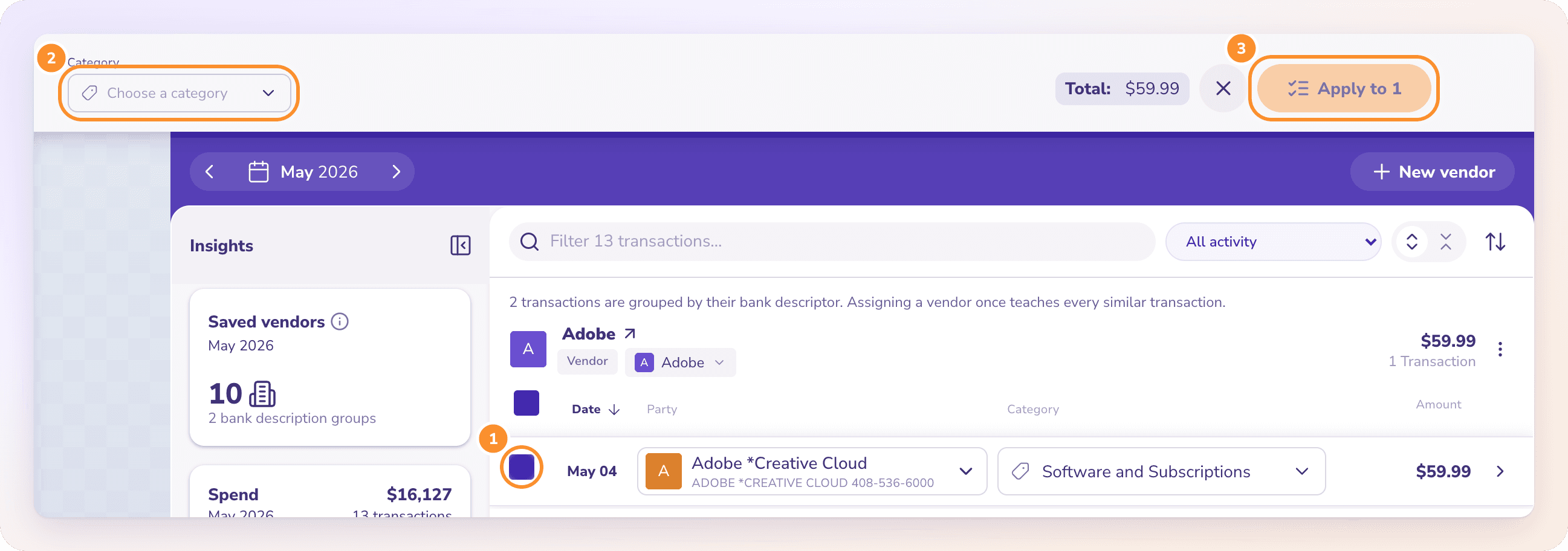
A note confirms the change, for example "12 transactions moved to Cafe Supplies." To clear the selection without changing anything, click the ✕ in the bar.
Tip: Only bank and card transactions you can edit can be selected. A line from a bill takes its category from the bill, and a payment matched to a bill belongs to that bill, so those rows have no checkbox. Change them on the bill itself.
Change one transaction and teach similar ones
Click a transaction to open it and choose a new category. ZeraBooks then offers to apply the same category to similar transactions from that vendor. See Apply a correction to similar transactions.
Frequently Asked Questions
How do I recategorize all of a vendor's transactions?
On the Vendors page, switch to Edit, tick the vendor card's header box to select its transactions, choose a category in the bar at the top and click Apply to N. Repeat for each period that has transactions.
Why can't I select some transactions?
They belong to a bill or invoice, or are part of a matched payment. Their category comes from the document, so change it on the bill or invoice.
Can I change the vendor for many transactions at once?
Not from the bar, which changes categories only. Assign the vendor on one transaction in Edit mode and accept the offer to apply it to all similar transactions. See Link bank descriptions to saved vendors.
Why did it say "A selected transaction is no longer visible"?
A selected transaction left the page, for example because the period or filter changed. Reload the page, select the transactions again and apply.
Does changing categories affect reconciliation?
No. Categories don't change a bank account's balance, so months that tie keep tying. Your reports update with the new categories.
Learn more about AI-native general ledger: A double-entry ledger where statements become proven transactions.
Still stuck? A real person reads every message—come say hello.