Customize pages and the cover, and attach supporting files
Change each page's title and figures, set the cover's title, preparer, footer and artwork, reorder pages, and attach PDFs or images to a custom report.
Change a page
These controls are on draft reports. A published report can't be changed; see Publish, copy, share and email a custom report.
Open the report from Custom Reports (Resume Editing on its card).
Click Options at the top of the page. The Options panel opens.
Change what you need, then click Done.
| Option | What it does |
|---|---|
| Page Title | The heading printed on the page, up to 160 characters. |
| Number Format | Rounded (whole dollars) or Decimal (dollars and cents). |
| Monthly Breakdown | Shows each month of the period as its own column. |
| Month over Month | Adds the change from the month before. |
| Show trendline | Adds a small chart on each line. It needs more than one column, so turn on Monthly Breakdown first. |
| Show percentage of income | Adds each line as a percentage of total income. |
| Show percentage of total | Adds each line as a percentage of its section's total. |
| Year over Year | Adds the same period a year earlier. |
| Year to Date (YTD) | Adds a column from the start of the fiscal year. |
The panel shows only the options that fit the kind of page you're changing.
Arrange and remove pages
Move a page: drag it to its new place in the report.
Remove a section: click the × on it, then Remove section. It is removed from this draft only; other reports are unchanged.
Write text: type in any text box. The Executive Summary page has a box for your summary, and Add text in the top bar adds a notes page. Text saves automatically.
Design the cover
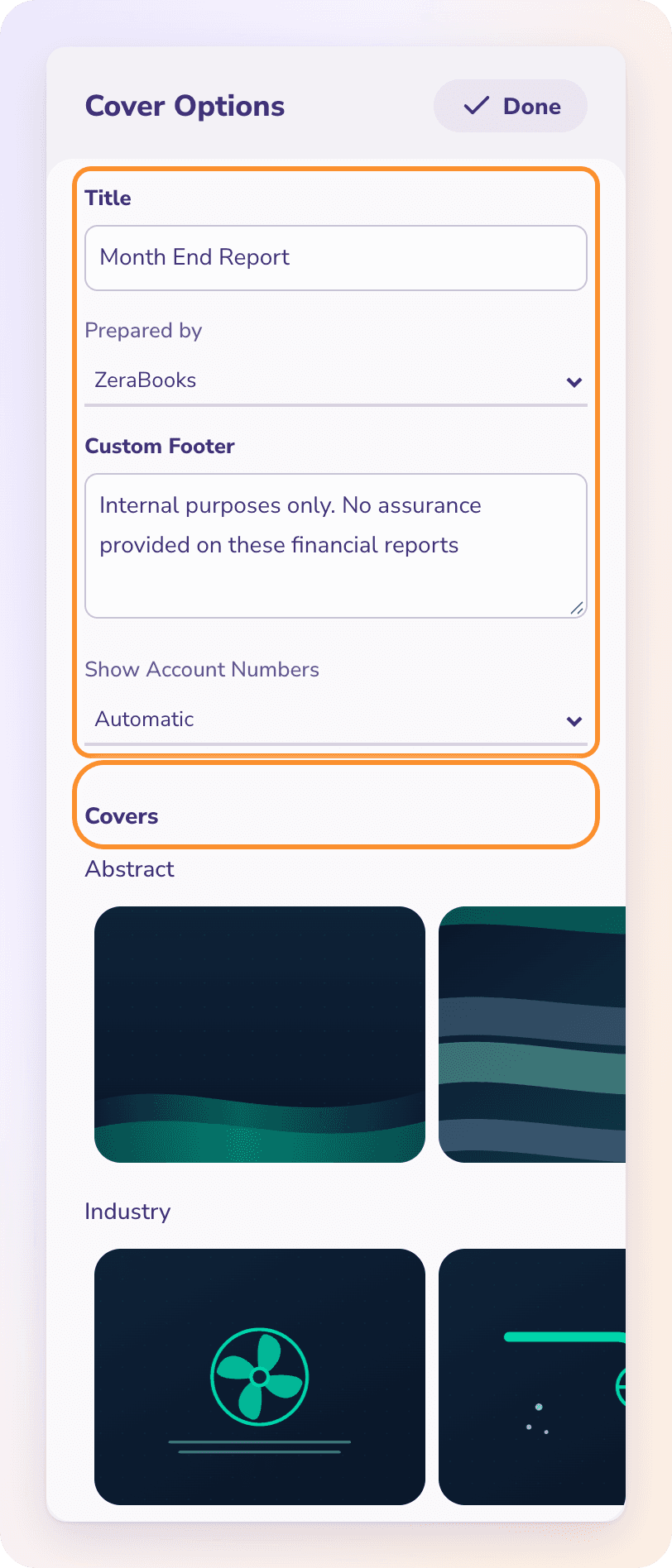
On a draft, click Options on the cover page. Cover Options opens.
Set the cover:
Title: the report's name, up to 120 characters.
Prepared by: ZeraBooks, Me or None.
Custom Footer: the line printed at the foot of the report, up to 400 characters. It starts as "Internal purposes only. No assurance provided on these financial reports".
Show Account Numbers: Automatic or Off, for category numbers on the statements.
Under Covers, click an artwork. The groups are Abstract, Bold, Cityscape, Industry and Scenic.
Click Done.
Attach supporting files
Add the documents your reader needs alongside the numbers, such as a bank letter, a loan statement or an invoice.
In the report's top bar, click Files to jump to Supporting files.
Click Add files and choose a file. Add one file at a time.
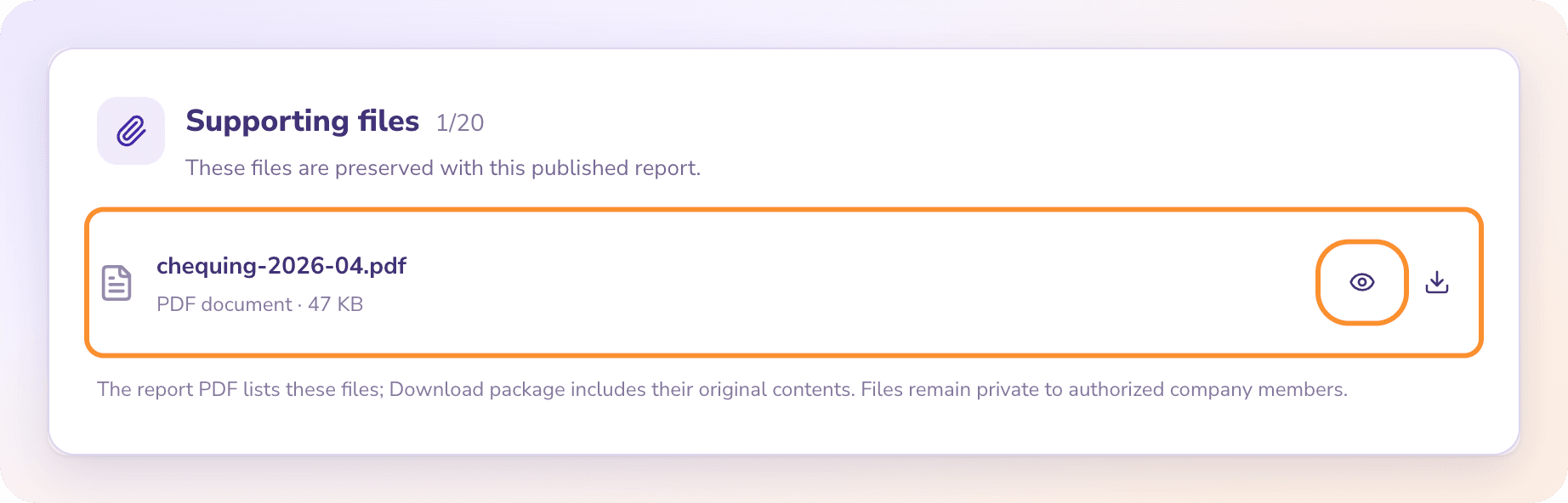
Use Preview, Download, Replace or Remove on any attached file.
| Rule | Limit |
|---|---|
| File types | PDF, PNG or JPEG |
| Size | Up to 10 MB per file |
| Number | Up to 20 files per report |
| PDFs | Static, up to 100 pages, without passwords, forms, links or comments |
| Images | Up to 40 megapixels |
The report PDF lists your supporting files on its own page. Download package includes the original files. Files stay private to your company.
Tip: A copied or duplicated report keeps its supporting files, so a loan statement you attach every month only needs replacing, not re-adding.
Frequently Asked Questions
What files can I attach to a custom report?
PDF, PNG or JPEG files, up to 10 MB each and 20 per report. PDFs must be 100 pages or fewer, without passwords or forms.
Why won't my file attach?
It's the wrong type, larger than 10 MB, or a PDF with a password, forms or more than 100 pages. Save it as a plain PDF or an image and try again.
What does "This report already has 20 attachments" mean?
The report is at its limit. Remove or replace a file before adding another.
Why doesn't Show trendline do anything?
A trendline needs more than one column. The panel says "Turn on Monthly Breakdown first — a trendline needs more than one column." Turn on Monthly Breakdown, then Show trendline.
Can I change the cover on a published report?
No. Click Create editable copy to get a draft, change the cover there and publish the copy.
Can I remove the ZeraBooks name from the cover?
Yes. In Cover Options, set Prepared by to Me or None.
Can I add comments for my client on the report?
Not yet. The Comments tab in the side panel isn't active. Write notes in a text section instead.
Learn more about AI-native general ledger: A double-entry ledger where statements become proven transactions.
Still stuck? A real person reads every message—come say hello.