Upload an invoice for AI reading
Upload an invoice you already issued elsewhere and ZeraBooks reads the customer, dates and lines into a draft for you to review and approve.
Upload the file
Use this for invoices you've already issued outside ZeraBooks, so they're recorded in your books.
Go to Bills & Invoices › Invoices.
Click Upload Invoice and choose one file: a PDF, PNG, JPG, WEBP or HEIC up to 14 MB.
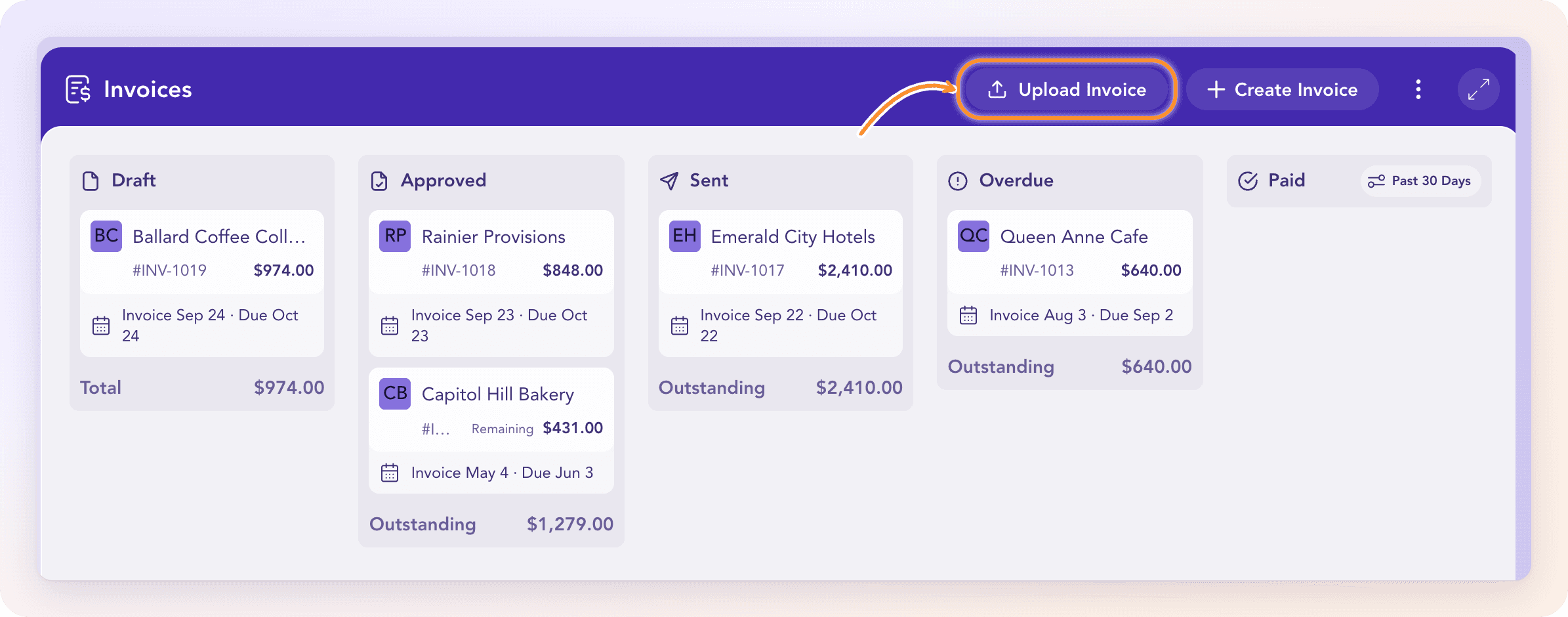
While it reads, the button says Reading Invoice… and a card appears on the board. The draft opens with the banner "Reading the stored invoice".
Review the draft
When reading finishes you see "Invoice read into a draft. Review it before approval." The original document is on the left and the fields ZeraBooks read are on the right: customer, invoice number, dates and each line.
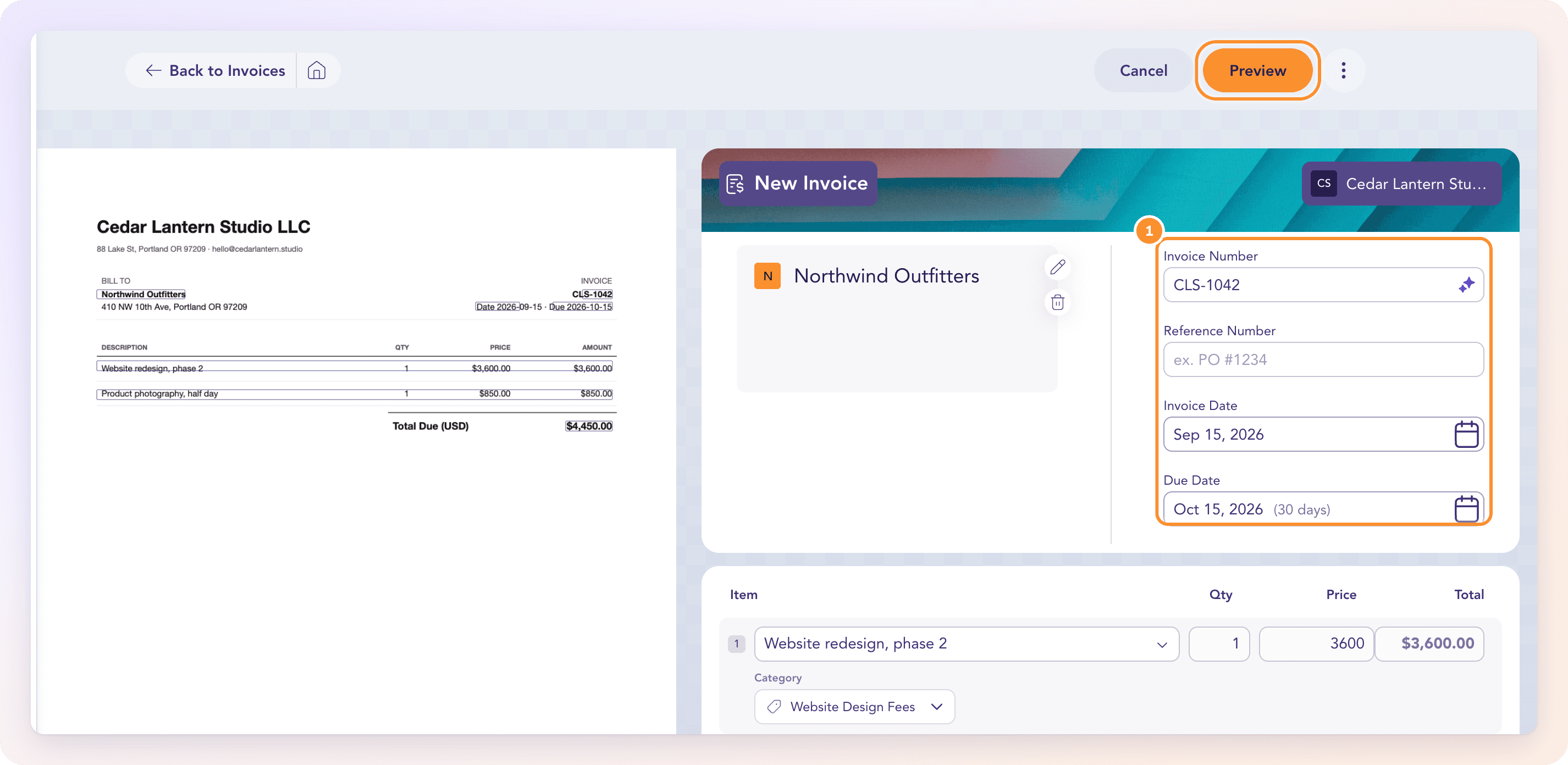
Check the Customer, Invoice Number, Invoice Date and Due Date against the document.
Check every line's amount and Category. Replace any line on Uncategorized Income with a specific income category.
Click Preview, then Approve. See Approve an invoice.
Once approved, the invoice shows Recorded — already issued. It's in your books and doesn't need sending. Use Send to customer only if you want ZeraBooks to email the customer a copy.
Tip: When everything about an uploaded invoice is already known (a customer you've confirmed before, lines that add up, categories ZeraBooks recalls rather than guesses, sensible dates, no duplicate and no payment waiting to settle it) and Autopilot's Approve bills and invoices is on, it can post by itself. Otherwise it waits as a draft for you.
If something goes wrong
| Message | What it means |
|---|---|
| "This document is larger than 14 MB. Choose a smaller document." | Compress or re-export the file. |
| "Choose a PDF, PNG, JPG, WEBP or HEIC document." | The file type isn't supported. |
| "This file is empty. Export the document again before uploading it." | The file has no content. |
| "That source is already in ZeraBooks. Opened the existing invoice; nothing was duplicated." | You uploaded the same file before. ZeraBooks opens that invoice instead. |
| "This invoice could not be read" | The file is stored and the draft is kept, with nothing posted. Enter the invoice's details in the draft yourself; the document stays attached. |
Frequently Asked Questions
Can I upload several invoices at once?
No. Upload Invoice takes one file at a time. Upload the next one when the first has been read.
Does uploading an invoice email it to my customer?
No. Uploading only records it. ZeraBooks emails the customer only when you click Send on the send screen.
I already sent this invoice from another system. Do I need to send it again?
No. It shows Recorded — already issued. Send it from ZeraBooks only if you want the customer to get another copy.
Does anything post while ZeraBooks is reading?
No. Reading only fills in a draft. The invoice reaches your books when it's approved.
What if the reading is wrong?
Correct the field in the draft before you approve. Every field is editable, and the original document stays beside the draft for comparison.
Learn more about AI-native general ledger: A double-entry ledger where statements become proven transactions.
Still stuck? A real person reads every message—come say hello.