Checks
The Checks page reads each written check's number, date, payee, memo and amount, and proves the amount in figures against the amount written in words.
What's read from a check
Upload PDFs or scans of written checks on the Checks page: click Upload checks in the page header, or drop them anywhere on the page. One PDF can hold many checks. For each check, ZeraBooks Convert reads:
the check number, date, payee, memo and amount;
the amount written in words;
the bank, the payer and the last 4 digits of the account it's written on.
Open a check document
In the left navigation, click Checks.
Pick a document under Check Documents on the left. Its tile shows the account ("Account ••1234") or the page count.
The checks open on the right, grouped by the bank account they're written on: "Written by {payer}" (or "Written on"), the bank and last 4 digits, and the number of checks.
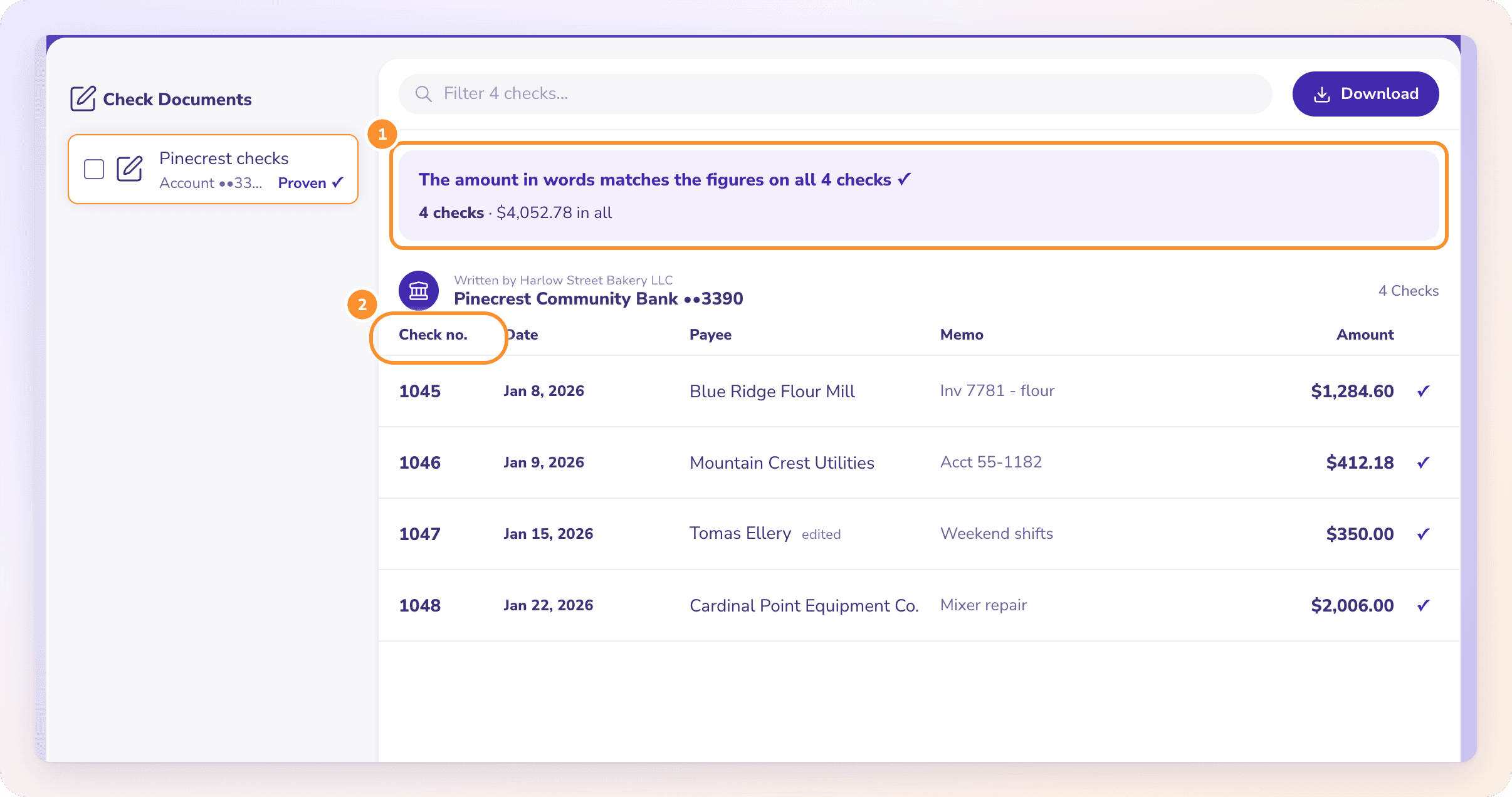
The columns are Check no., Date, Payee, Memo and Amount, followed by a proof mark for each check:
| Mark | What it means |
|---|---|
| ✓ | "The amount in words matches the figures" |
| Orange warning triangle | "The amount in words doesn't match the figures" |
The words-vs-figures proof
Every check carries its amount twice: in figures and in words. Convert compares the two for each check.
All match: "The amount in words matches the figures on all n checks ✓" (or "on the check" for one), with the number of checks and their total, for example "12 checks · $8,430.00 in all".
Some don't: "x of n checks need a look before you download", with a line for each one:
"Check 102 · the words say $A, but the figures say $B. Click the check to fix it."
"Check 102 · the amount in words couldn't be read. Compare it with the PDF and fix the amount if needed."
No checks found: "No checks were found in this document."
The document is Proven ✓ only when every check matches and nothing else is left to review.
Fix a check
Click the check (or select it and press Enter).
Correct the Check number, Date, Payee, Memo or Amount. While you edit, "Written in words: …" shows what was read in words, so you can compare.
Click Save, or press Enter. Press Esc or click Cancel to leave without changes.
Enter the amount in figures, with no minus sign needed, for example 1,284.60. Checks are always saved as money out. If the amount is empty or zero, you'll see "Enter the check amount in figures, e.g. 1,284.60."
After you save, each check is proven again against its amount in words, and the check shows "edited" beside its payee.
The toolbar
Filter: type in Filter n checks… to show only the checks whose number, payee, memo, amount or date contains what you typed. With no match: "No checks match your filter."
Download: opens a small menu: Excel or CSV. See below.
Download checks
Open the document and click Download in its toolbar, then click Excel or CSV. The file downloads at once; there's no dialog, because checks have one format, All details, with the columns Check Number, Date, Payee, Amount, Memo, Written By, Bank, Account Last 4 and Source File. To download several documents in one file, tick them in the list on the left, click Download n together at the top of the list, then Excel or CSV. See Download your data.
Frequently Asked Questions
Can I add or remove a check?
No. On the Checks page you can correct a check's number, date, payee, memo and amount. If checks are missing, upload a clearer copy of the PDF.
How do I get checks into my accounting software?
Download them as CSV or Excel and import the file into your software.
What if the amount in words couldn't be read?
Compare the check with your PDF. If the figures are right, there's nothing to change. If they're wrong, click the check and correct the Amount.
Why does the amount have no minus sign?
A check is always money out, so Convert saves it that way. Type the amount as a positive figure, for example 1,284.60.
How do I download checks?
Click Download on the check document, then Excel or CSV. For several documents at once, tick them in the list, click Download n together, then choose the file type.
Can I scan paper checks?
Yes, as long as the scan is saved as a PDF. Convert accepts PDFs only, up to 50 MB each.
Learn more about Bank statement converter: Statements to checked Excel or CSV, split by account and cardholder.
Still stuck? A real person reads every message—come say hello.