The auditor's notes and the monthly digest
On every pass ZeraBooks takes a second look at your categories, flags possible duplicates and explains months that don't tie, then sums up the latest complete month.
Find the digest
In the left navigation, click Autopilot.
On the right, find the card titled with a month, for example August 2026.
The card shows only when there's a digest or something the auditor noticed.
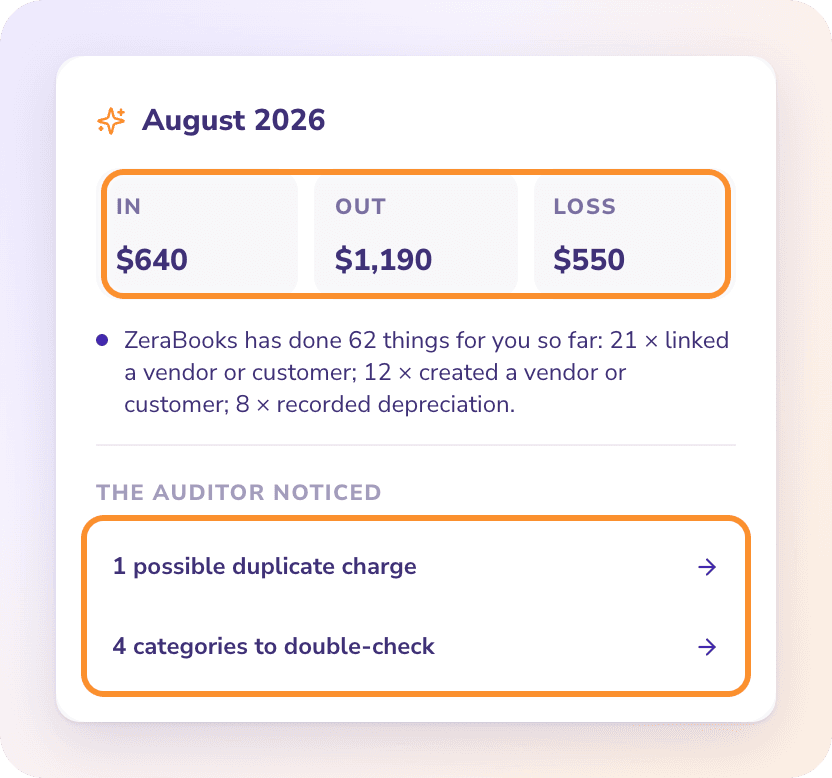
Read the monthly digest
The digest covers the latest complete month that has activity in your books.
In, Out and Profit (or Loss): the month's income, expenses and result, in your books currency.
Up to five notes, such as what ZeraBooks has done for you so far ("ZeraBooks has done 42 things for you so far: …") and categories that changed noticeably from the month before ("Software rose $120 to $480.").
The figures are calculated from your books. The AI only picks which changes are worth mentioning.
Note: The digest appears on the Autopilot page only. ZeraBooks doesn't email it.
What the auditor looks at
On every pass, after categorizing, Autopilot rechecks your books:
Recent categories. Each recently categorized transaction gets a second look. If the AI filed it and is clearly wrong, Autopilot corrects it (logged as Corrected an inconsistent category, with an Undo button). If it's only doubtful, or if you chose the category yourself, it's flagged instead. Your own categories are never overwritten.
Consistency. When one merchant is split across categories, Autopilot makes the odd ones consistent, unless the split looks deliberate.
Possible duplicates. The same amount, merchant and account within 3 days is flagged. Nothing is deleted.
Months that don't tie. For each month with a reconciliation exception, it adds a plain-English likely cause, such as a missing statement, a timing difference or a bank fee that wasn't recorded.
Act on the auditor's notes
Under The auditor noticed, each link opens the page where you fix it:
| Link | Opens | What to do |
|---|---|---|
| N reconciliation notes | Reconciliations | Open the month with the orange ! and follow Fix a month that doesn't tie |
| N possible duplicate charges | Banks & Cards | Compare the two lines with the statement. If one isn't on it, remove it in Reconciliations with Remove row. |
| N categories to double-check | Banks & Cards | Switch to Edit, check the flagged rows and pick the right category, or click Looks right |
Frequently Asked Questions
Does ZeraBooks delete duplicate charges?
No. It flags them under The auditor noticed so you can check them against the statement.
Can the auditor change a category I chose?
No. If it doubts a category you set yourself, it flags it for you. It only corrects categories the AI chose, and you can undo those corrections from Done by AI.
Which month does the digest show?
The latest complete month with activity in your books. An empty calendar month is skipped.
Why don't I see the digest card?
It appears once Autopilot has written a digest or noticed something. Upload a statement and click Run now on the Autopilot page.
Learn more about AI bookkeeping: Autopilot and Ask Zera keep the books inside a real general ledger.
Still stuck? A real person reads every message—come say hello.