Add, edit, deactivate or merge a vendor or customer
Create a vendor or customer before their first bill or invoice, keep their details current, stop offering one you no longer use, and merge duplicates.
Add a vendor or customer
In the left navigation, click Vendors (or Customers).
Click New vendor (or New customer) at the top right.
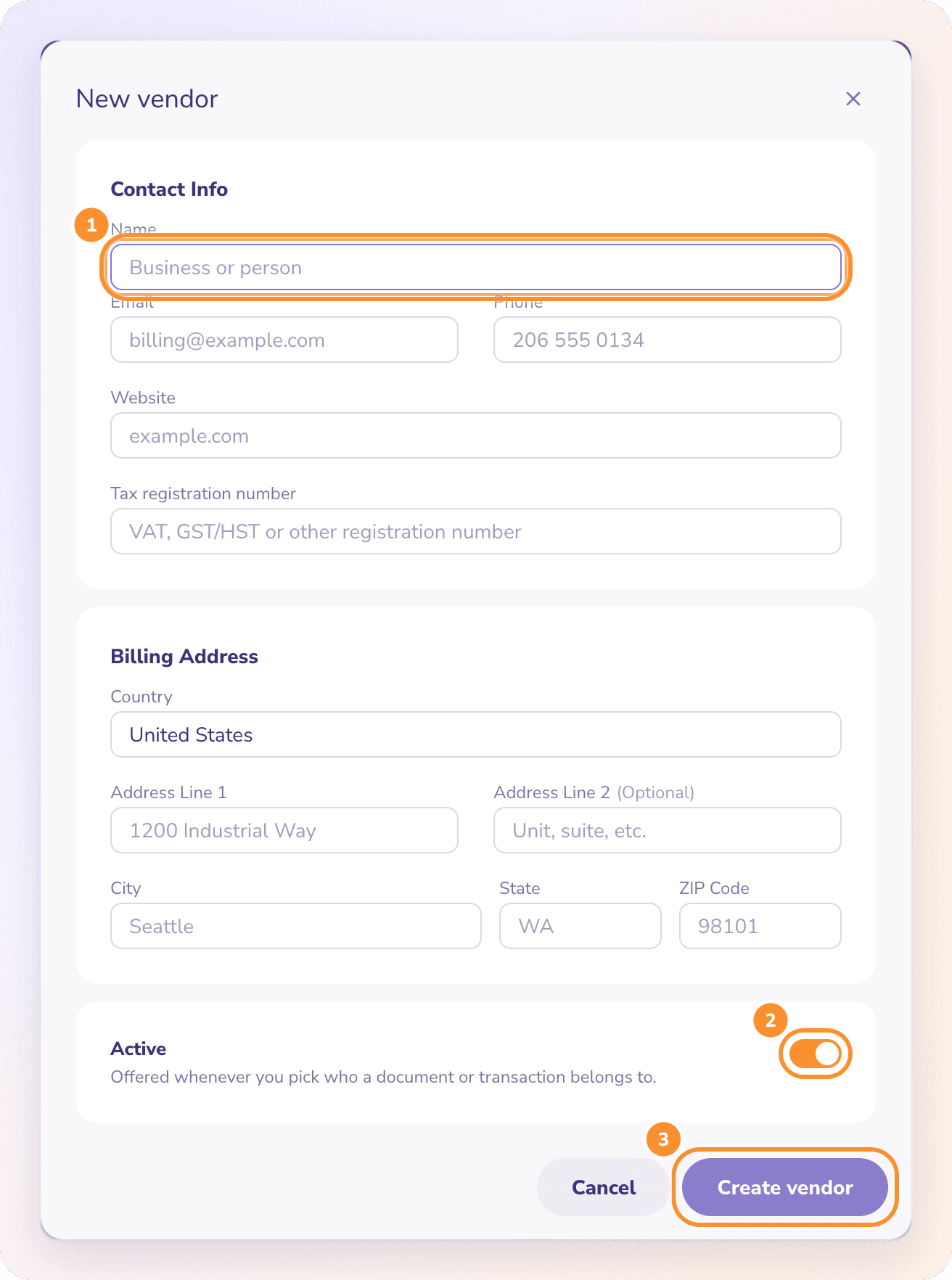
Enter the Name. It's the only required field.
Optionally add Email, Phone, Website, Tax registration number and the Billing Address. The country starts as your company's country, and the address labels follow it (for example State and ZIP Code for the United States).
Leave Active on, then click Create vendor (or Create customer).
You don't have to add vendors in advance. A vendor is also created when you approve a bill from a new vendor, and you can type a new name wherever you pick a vendor.
Edit a vendor or customer
Click the vendor's name on the Vendors page to open it.
Click Edit vendor.
Change the details and click Save.
If the name you type already belongs to another record, ZeraBooks says so: "“…” already exists. Open that one instead, or merge the two below". Two records with one name make their history ambiguous.
Deactivate one you no longer use
Open the vendor, click Edit vendor, turn Active off and click Save.
An inactive vendor stays on every bill and transaction it already touches. It just stops being offered when you pick a vendor. Turn Active back on to offer it again.
Merge duplicates
If the same vendor was entered twice:
Open the duplicate you want to remove and click Edit vendor.
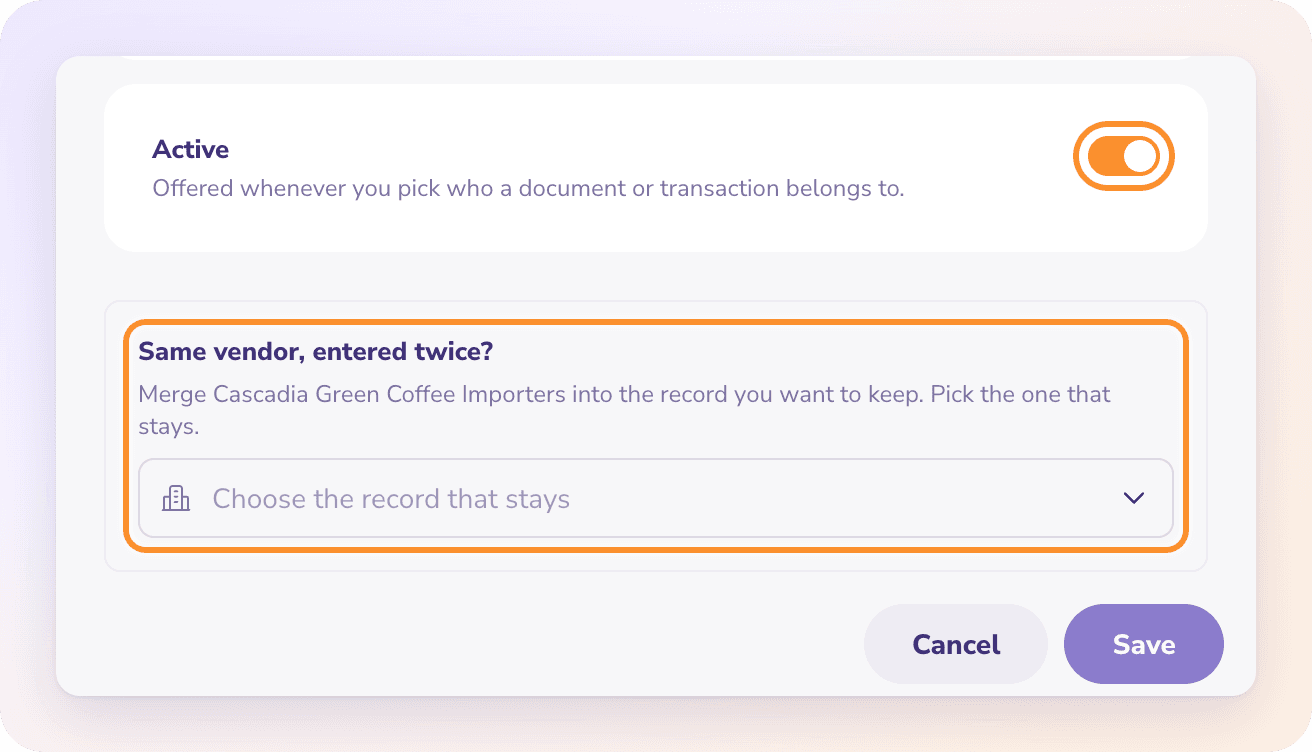
Under Same vendor, entered twice?, choose the record that stays.
Read the summary: every transaction and document moves to the record that stays, and the duplicate is deactivated.
Click Merge into …
A merge can only be undone by splitting the records again by hand. Check you've picked the right record to keep before you click Merge into ….
Frequently Asked Questions
How do I add a vendor before their first bill?
On the Vendors page, click New vendor, enter the name and click Create vendor. It's then offered whenever you pick a vendor on a bill or transaction.
Can I delete a vendor or customer?
No. Turn Active off instead. The record stays on everything it already touches, so your history stays intact, but it's no longer offered when you pick.
How do I merge two vendors that are the same business?
Open the one to remove, click Edit vendor, choose the record that stays under Same vendor, entered twice?, and click Merge into …. Everything moves to the record that stays.
What does "A name is required" mean?
The Name field is empty. Enter the business or person's name, then save.
Do I need a vendor's bank details to pay them?
No. ZeraBooks never pays vendors or moves money, so it doesn't ask for bank details. Payments are matched from your bank or card statements.
I created a vendor with a name I deactivated earlier. What happens?
Saving that name brings the earlier record back, with its history, instead of creating a second one.
Learn more about AI-native general ledger: A double-entry ledger where statements become proven transactions.
Still stuck? A real person reads every message—come say hello.