Email an invoice, send it manually, or download the PDF
Email an approved invoice with its PDF attached, record that you delivered it yourself, or download the PDF.
Email the invoice
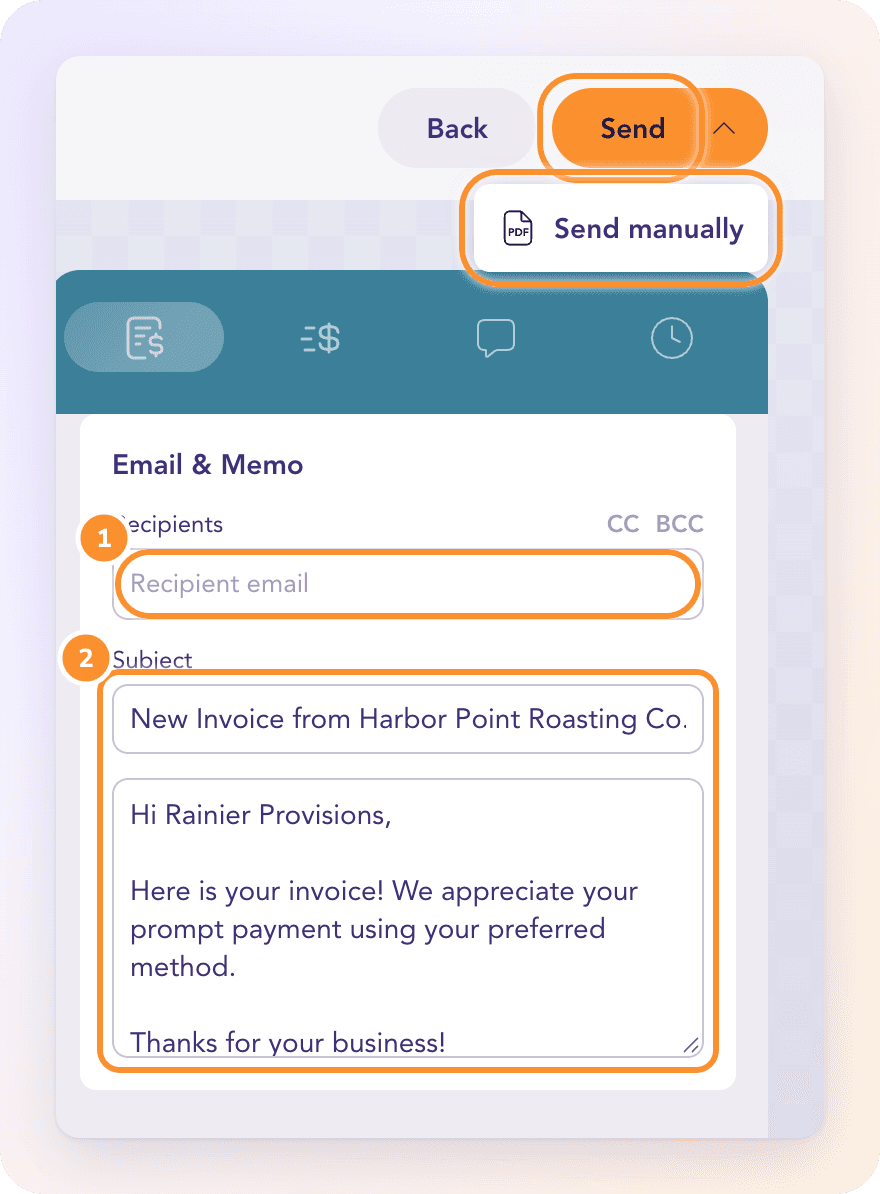
Open an approved invoice. After you click Approve, the send screen opens on its own.
Otherwise click Send at the top of an approved invoice. Once it has been sent, the button reads Resend; on an invoice you uploaded, it reads Send to customer.
Under Recipients, check the To address. It starts with the customer's email. Click CC or BCC to add more people.
Edit the Subject and the message if you like.
Click Send.
You see "Invoice sent to customer!" and the invoice moves to Sent.
What your customer receives
From: ZeraBooks <[email protected]>. Replies go to your company's contact email, or your sign-in email if there's none.
Subject: "New Invoice from your company via ZeraBooks" unless you change it.
Body: your message as plain text. It starts from the invoice memo, or "Here is your invoice. We appreciate your prompt payment using your preferred method."
Attachment: the invoice PDF.
There are no links, logos or payment buttons in the email.
Note: ZeraBooks does not process card or online payments. Your customer pays you the way they normally do (bank transfer, check, cash), and the payment is recorded when you upload the bank statement it appears on.
Send it manually
If you delivered the invoice yourself (by hand, from your own email, in a portal), record that instead:
On the send screen, open the arrow next to Send.
Choose Send manually.
You see "Marked as sent manually. No cash or journal entry was created." The invoice moves to Sent, so it can become Overdue and receive reminders later.
Download the PDF
On the send screen, find Invoice PDF and click Download. The file is named after your company and the invoice number.
Frequently Asked Questions
Can I send an invoice to more than one person?
Yes. Add addresses in To, CC or BCC, up to 10 recipients in total. At least one To recipient is required.
Where do replies to the invoice email go?
To your company's contact email, set in Settings › Company. If none is set, replies go to the email you sign in with.
Can my customer pay online from the invoice?
No. ZeraBooks doesn't process payments and puts no payment link in the email. Record the payment by matching the deposit once the bank statement is uploaded, or with Mark as Paid….
Why can't I send a draft?
Only approved invoices can be sent. Approve the draft first; the send screen opens right after.
What does "Send manually" change in my books?
Nothing. It only records that the customer has the invoice, which moves it to Sent. No cash or journal entry is created.
What does "is not a valid email address" mean?
One of the recipients isn't a complete email address. Fix or remove it and click Send again.
Learn more about AI-native general ledger: A double-entry ledger where statements become proven transactions.
Still stuck? A real person reads every message—come say hello.